Debugging a billable metric
Last updated: September 13, 2024
When working with billable metrics in Orb, it’s crucial to ensure that your metrics accurately capture and aggregate the intended usage events correctly. There are two main ways to debug a billable metric: previewing events during the billable metric creation process and using the billable metric debugger after the metric has been created.
Debugging during billable metric creation
When creating a billable metric using simple event filters or custom SQL, you can preview the sample list of events that qualify for this billable metric. Clicking the Preview button will allow you to see any usage events that have already been ingested and would qualify for this billable metric. This step helps you verify that the metric is correctly configured to capture the desired events before finalizing the creation.
Debugging with the billable metric debugger
After creating a billable metric, you can use the Billable Metric Debugger to ensure its accuracy further. To access this tool, navigate to the specific billable metric in Orb and click on the Debugger tab.
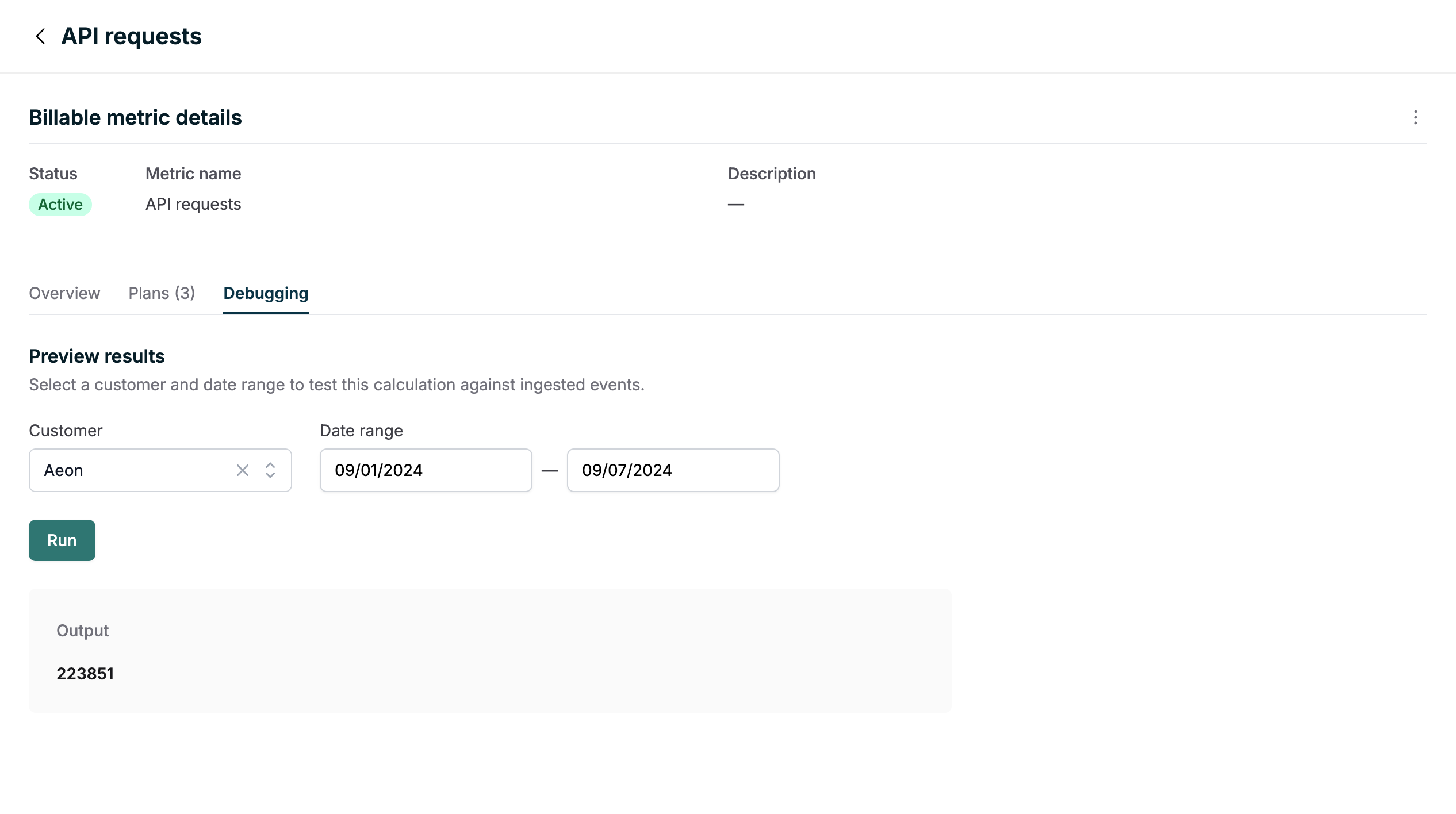
You can select a customer and a time frame from the debugger to execute the billable metric. The debugger will then show you the quantity generated by running the billable metric for the selected customer and time period. This allows you to validate that the metric performs as expected as it will on an invoice.