Syncing Tax to NetSuite
Last updated: October 31, 2024
If you have a third-party tax integration (e.g. Anrok, Avalara, or TaxJar) already configured in Orb and are syncing invoices to NetSuite, you can configure Orb to also send these tax amounts as line items on the invoice.
Tax is synced as a line item
Since NetSuite provides their own tax calculations, Orb syncs third-party calculated tax amounts as line items on the invoice. As a result, tax amounts synced from Orb will not be subject to NetSuite's default tax treatment – you may see that lines labeled "Tax" in NetSuite show zeros, which is expected.
However, taxes are all linked to the item you've configured in Orb, which allows you to specify how those tax line items should be treated in NetSuite.
Step 1: Make sure NetSuite tax calculations are disabled
NetSuite can also calculate taxes on invoices. NetSuite's built-in tax calculation must be disabled to avoid duplicating tax if you're already using a different third-party tax integration in Orb.
There are several ways to disable tax calculation in NetSuite.
Disabling tax calculation for an entire nexus – this is the simplest way, and only needs to be done once.
Disabling tax for a particular Item via its Tax Schedule
Disabling tax for a specific customer on the customer detail view, under the Financial subtab
Step 2: Choose an item in NetSuite to sync tax line items
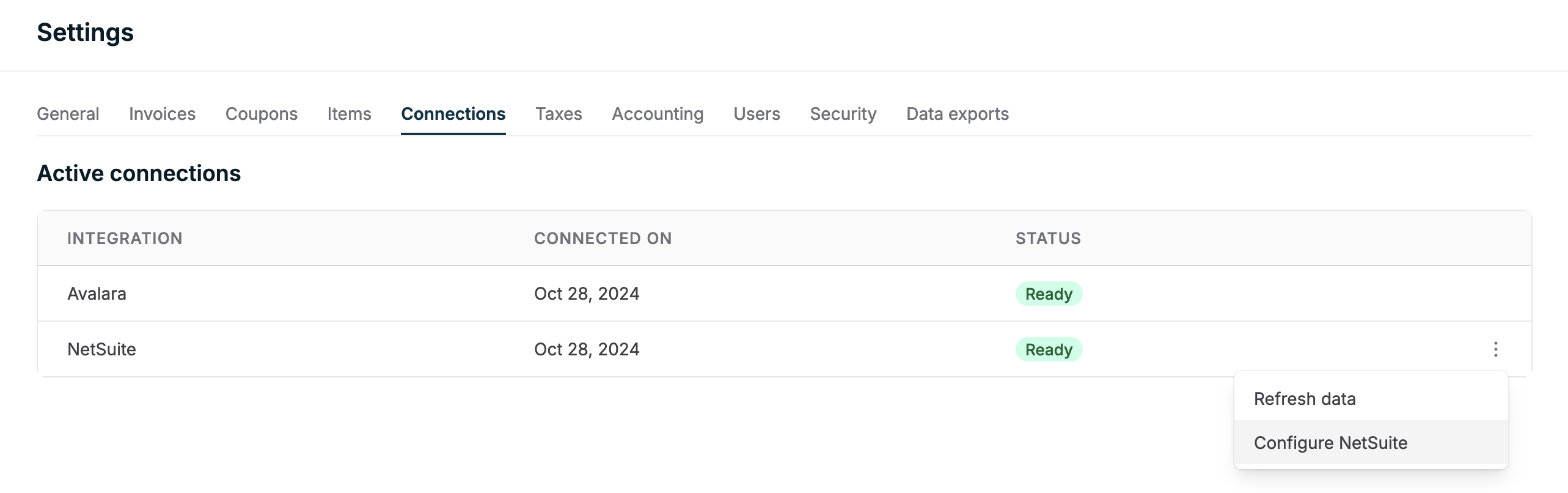
In Orb, navigate to Settings -> Connections and open the "Configure NetSuite" from the menu.
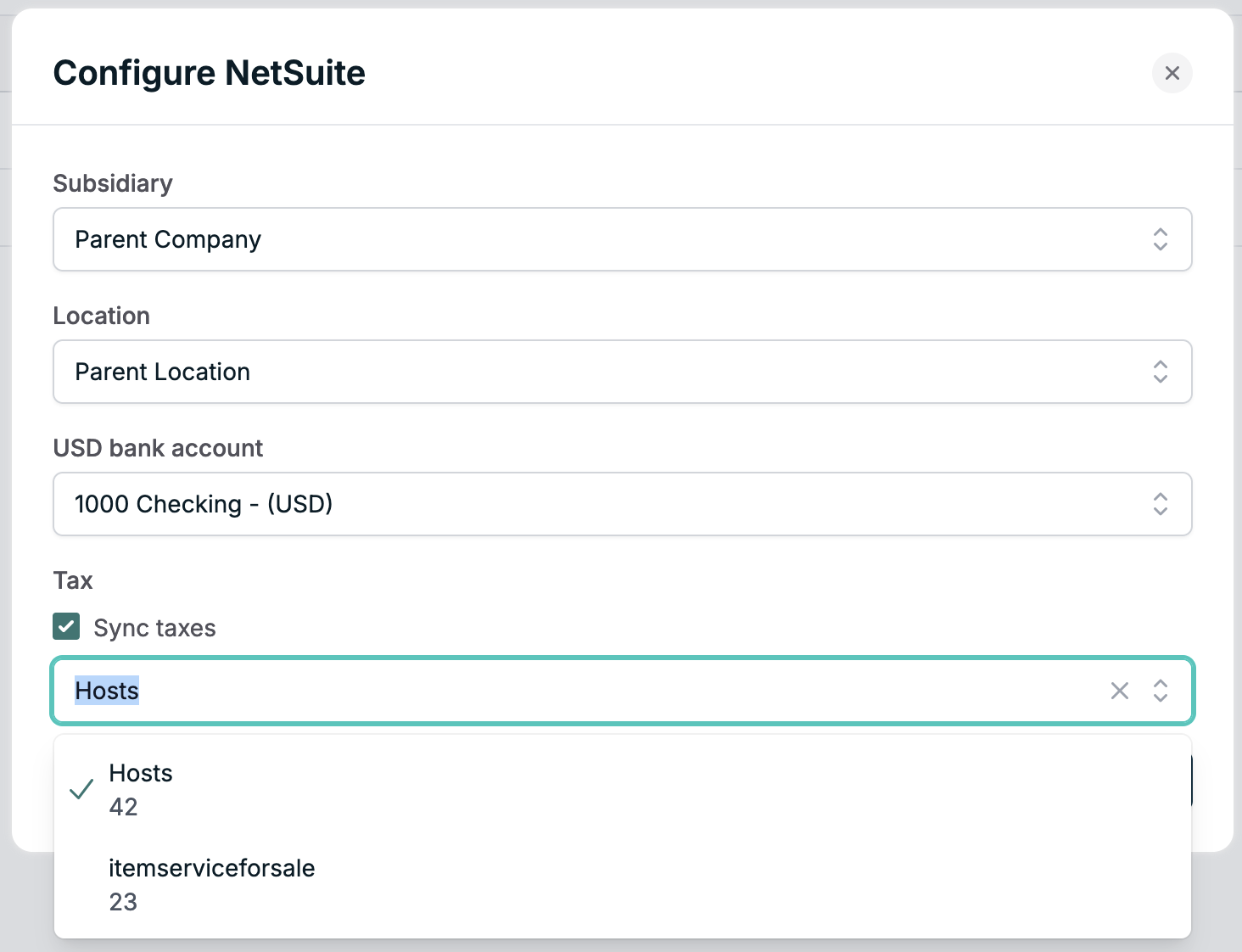
In the dropdown that opens, select an item from your NetSuite instance to represent tax. Orb will sync taxes as line items on the invoice. These line items will be mapped to this item in NetSuite.
Step 3: Start syncing invoices
Subsequently issued invoices will receive this tax treatment once they are synced to NetSuite. This applies to both our invoicing and accounting integrations.